Circular Motion Refinement Workflow (G104 Arcs)
Circular motions (G104 arcs) are defined by two points:
- Via / Mid-Point
- End Point
Adjusting these points changes the shape and trajectory of the arc.
This workflow uses:
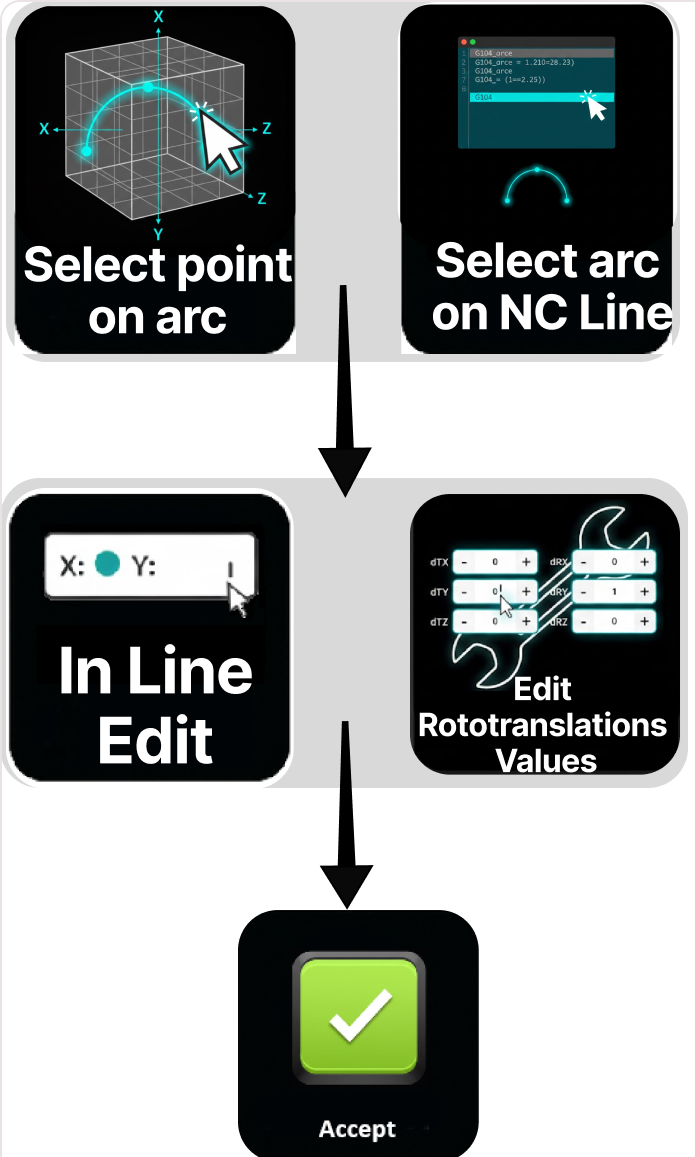
Step 1 — Select the Arc
Select the G104 line in the NC Editor.
Both defining points become visible in the 3D Viewer.
Step 2 — Select the Arc Point
Select either:
- the via point
- the end point
The manipulator moves to that point.
Step 3 — Adjust the Point
Apply a small correction using:
- Line-by-Line Editing, or
- Rototranslation Panel
Step 4 — Verify the Arc Shape
Inspect the arc in the 3D Viewer.
Confirm that:
- the arc remains smooth
- the trajectory matches the intended path
- no collisions occur
Notes for Operators
-
Selecting the G104 block from the NC Editor automatically selects both defining points of the arc.
This is the fastest way to visualize the full arc trajectory. -
For subtle curvature adjustments, modify the via / mid-point.
-
For endpoint alignment corrections, adjust the end point instead.
-
When using TCP reference, the Manipulator provides intuitive visual control for refining the arc geometry.
-
Use SHIFT or CTRL multi-selection when adjusting arc segments that must remain continuous.
-
Selecting points directly from the 3D Viewer provides greater flexibility, allowing rototranslation offsets to be applied to only the selected point (via or endpoint).
-
After modifying arc points, always verify collision and reachability before executing the program.