Uploading a Project
Purpose
Uploading a project prepares the machining scenario for use in Shopfloor Assistant.
A project package contains the required data for simulation and inspection, including:
- machine configuration
- NC program
- project settings
Once uploaded, the project is stored locally and can be reopened later using the Open Project command.
Procedure
Step 1 — Open the Upload Project Command
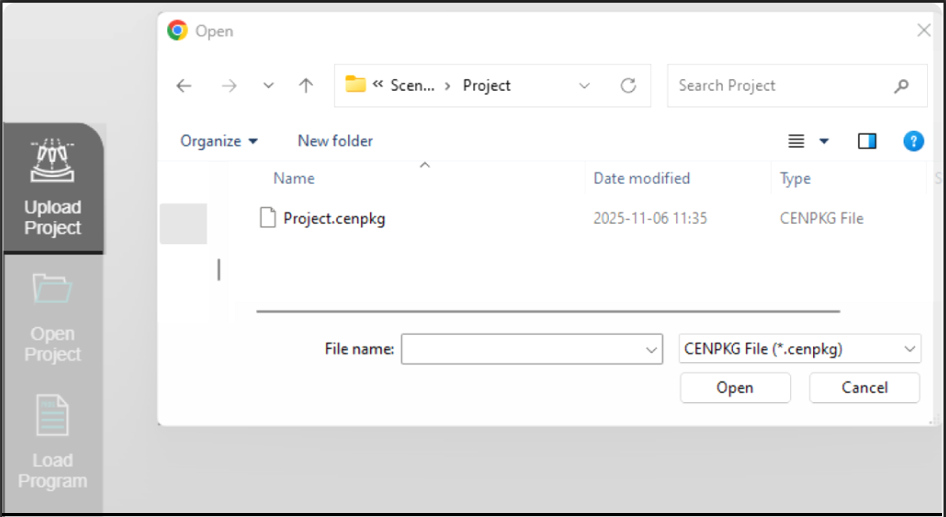
Click the Upload Project button located in the left-side panel of the Shopfloor Assistant interface.
Step 2 — Select the Project Package
Choose the project scenario file to upload.
Shopfloor Assistant supports structured .cenpkg project packages.
Step 3 — Confirm the Upload
The system uploads the project to the data location defined in the Launcher settings or during installation.
Notes for Operators
- Use clear and descriptive file names for project packages.
- Keep file paths short (for example
C:\ShopfloorAssistant) to avoid potential upload issues. - The upload process runs entirely locally and does not require an internet connection.
Was this page helpful?