Multi-Line Rototranslation Workflow
This workflow explains how to move or rotate a group of toolpath points.
It uses:
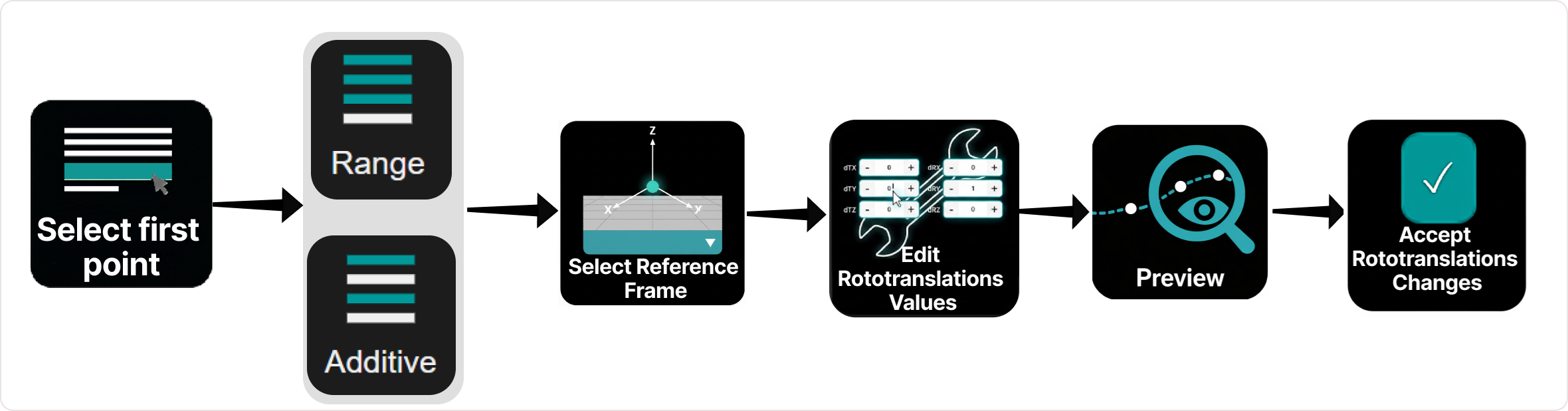
Step 1 — Select Multiple Lines
Use CTRL or SHIFT to select multiple NC lines.
Selected points are highlighted in the 3D Viewer.
Step 2 — Confirm the Pivot Point
The first selected point becomes the pivot when using TCP reference.
Verify the pivot location in the 3D Viewer.
Step 3 — Apply Rototranslation
Open the Rototranslation Panel.
Enter the desired transformation values:
- translation offsets (dTx, dTy, dTz)
- rotation offsets (dRx, dRy, dRz)
When values are entered, Shopfloor Assistant generates a preview of the modified toolpath in the 3D Viewer.
This preview allows the operator to verify the transformation before committing the change.
Press Accept to apply the transformation and update the NC program.
Step 4 — Verify the Toolpath
Inspect the modified toolpath in the 3D Viewer.
Confirm that:
- all selected points moved correctly
- the geometry remains valid
Notes for Operators
-
Multi-line rototranslation is commonly used to align toolpaths with the workpiece or fixture position.
-
When using TCP reference, the first selected motion point becomes the transformation pivot.
-
The preview toolpath allows you to verify the transformation before modifying the NC program.
-
If the preview result is incorrect, adjust the transformation parameters or select a different pivot.
-
Changing the selection or clearing the rototranslation values automatically cancels the preview.
-
Always inspect the updated toolpath in the 3D Viewer before confirming the transformation.