Line-by-Line Editing
Purpose
Line-by-line editing allows operators to inspect and modify individual NC program lines directly in the NC Editor Panel.
Each modification follows a simple workflow:
- select the NC line
- edit the required parameters
- confirm the modification
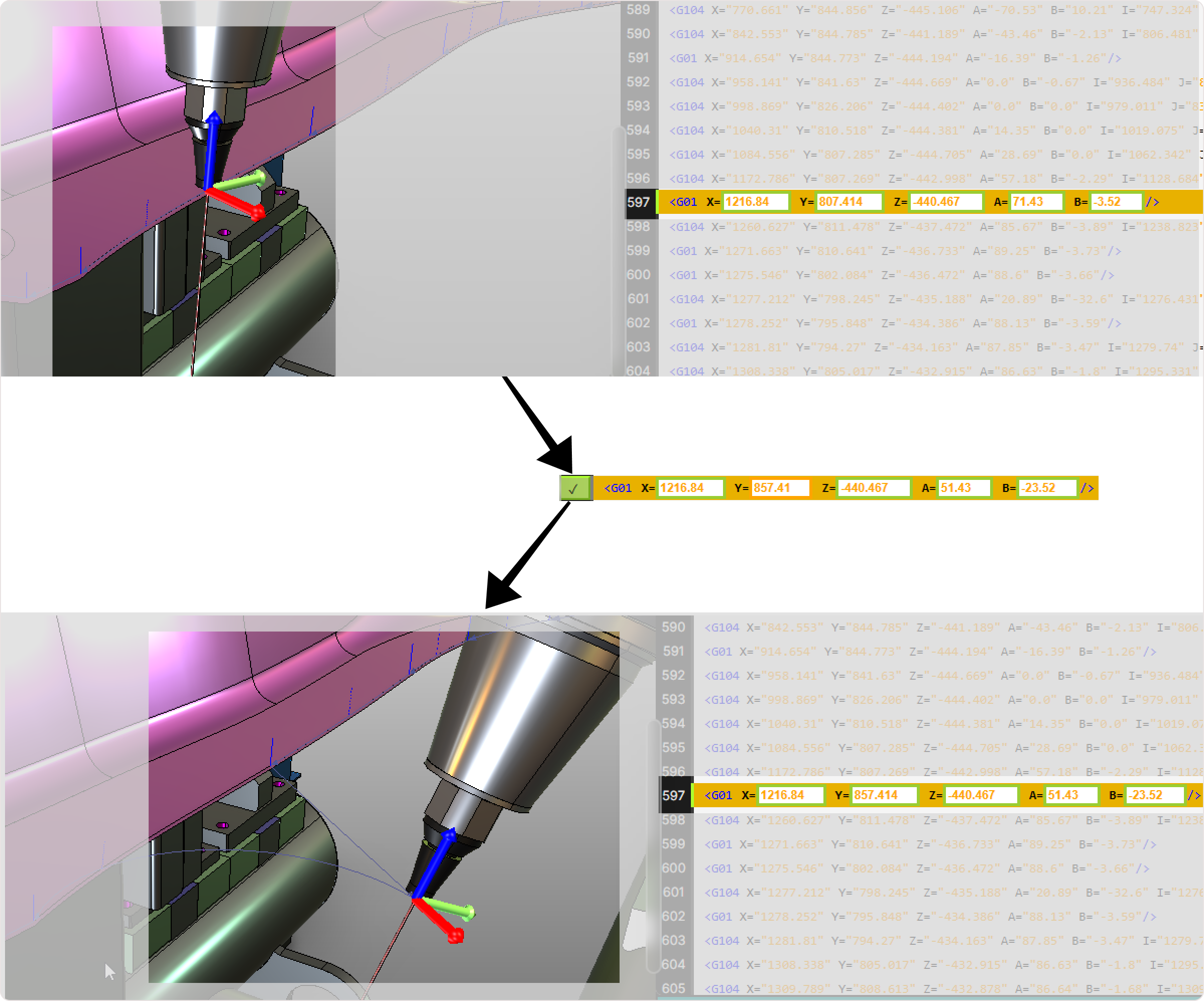
After confirmation, the change is immediately reflected in the 3D Viewer, allowing visual verification of the updated toolpath.
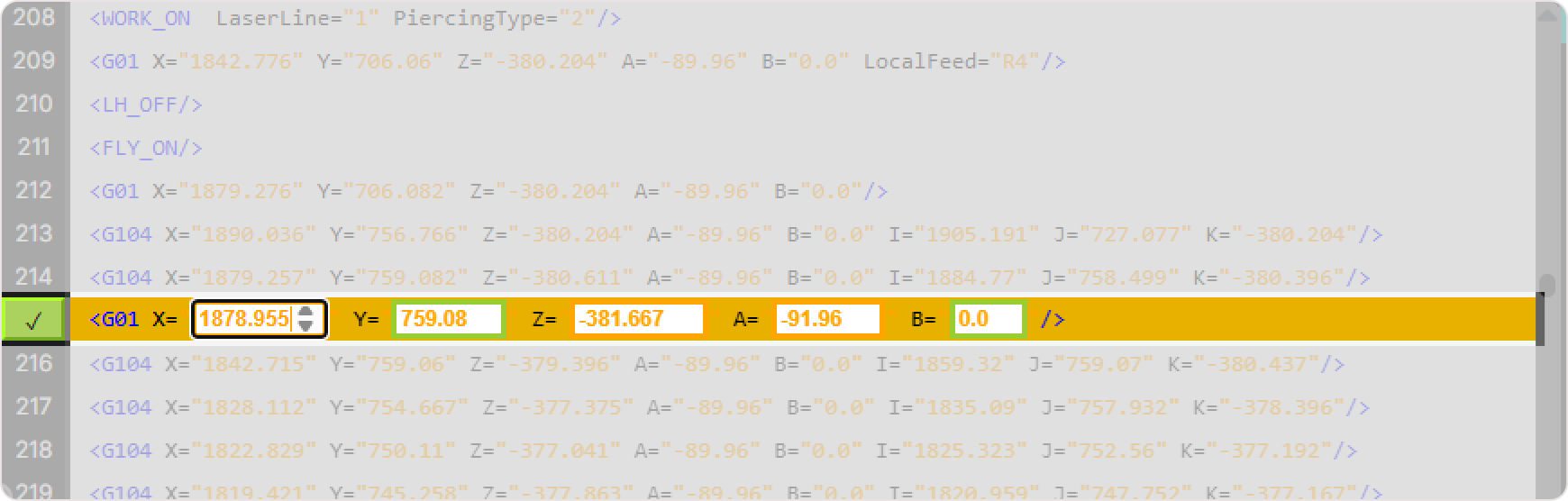
Controller Note
The NC syntax displayed in the editor may vary depending on the controller.
SinumerikOne example
<G01 X="1878.955" Y="759.08" Z="-381.667" A="-91.96" B="0.0" />P30L example
G01 X1876.955 Y759.08 Z-380.667 A-39.96 B0
Procedure
Step 1 — Select the Line
Select a motion line using either interface:
- click a line in the NC Editor
- select the corresponding point in the 3D Viewer
After selection, the machine moves to the selected position, providing spatial context for the edit.
Step 2 — Edit Coordinates or Parameters
Modify the desired values directly in the NC Editor input fields.
Typical editable values include:
- Coordinates: X, Y, Z
- Tool orientation: A, B
- Base frame position: G93
- Frame offset: G94
- Feed values: Feed or Local Feed
- Technology parameters: Laser Line, Piercing Type, and other NC attributes
All parameters can be adjusted numerically for precise control.
Step 3 — Apply the Change
Edits become active only after pressing the Accept button located next to the modified line.
After accepting the change:
- if the modification affects a motion point, the 3D Viewer updates immediately and the point moves to the new position or orientation
- if the modification affects a non-positional line, the change is stored internally but no visual update appears in the 3D Viewer
Step 4 — Verify the Result
After applying the change, verify the updated toolpath in the 3D Viewer.
Check the following aspects:
- tool position
- tool orientation
- clearance from surrounding geometry
- overall trajectory accuracy
Notes for Operators
- Changes are applied only after pressing Accept, preventing accidental modifications.
- Always verify the result in the 3D Viewer after confirming a change.
- Non-positional edits (feeds, parameters, technologies) do not modify the visual toolpath but are still stored in the NC program.
- Use line-by-line editing for precise corrections when refining individual toolpath points.
- Combine NC Editor selection and 3D Viewer selection for faster navigation in dense toolpaths.