Launching Shopfloor Assistant
After the installation is complete, starting Shopfloor Assistant takes only a few seconds.
This section explains how to launch the application and verify that all components are running correctly.
Start Shopfloor Assistant
Locate the file FastCube.Launcher.exe on your desktop or inside the installation folder and double-click it to start the application.
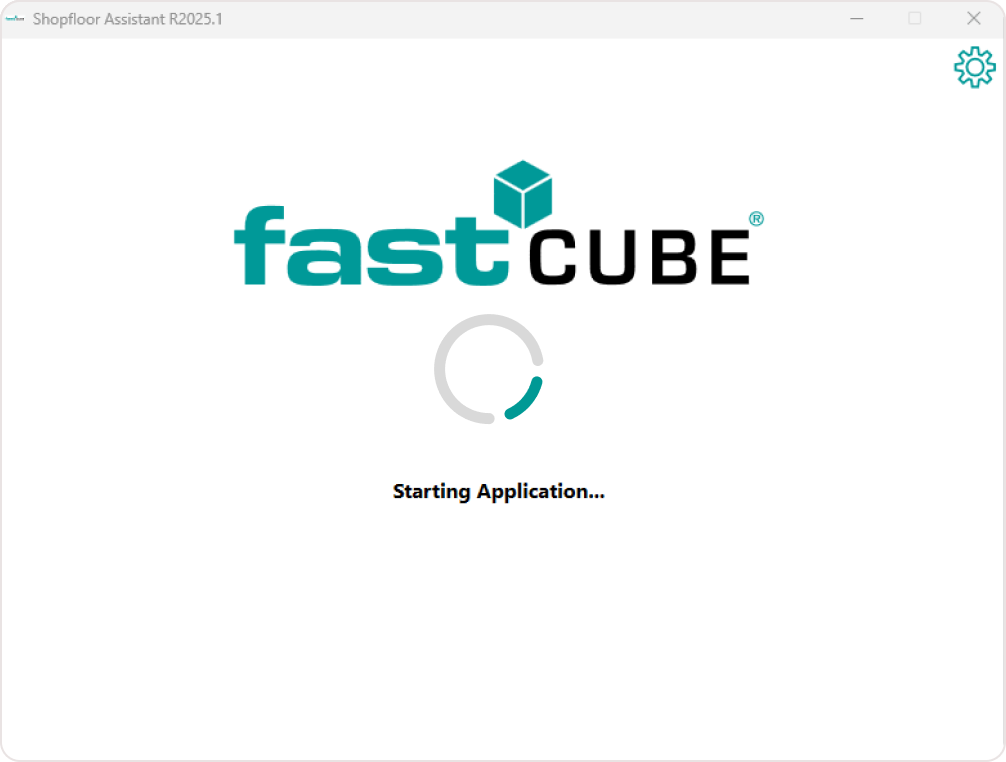
Step 1 — Component initialization
A launcher window opens and a status bar appears.
This indicates that the launcher is initializing the services and components required to run Shopfloor Assistant.
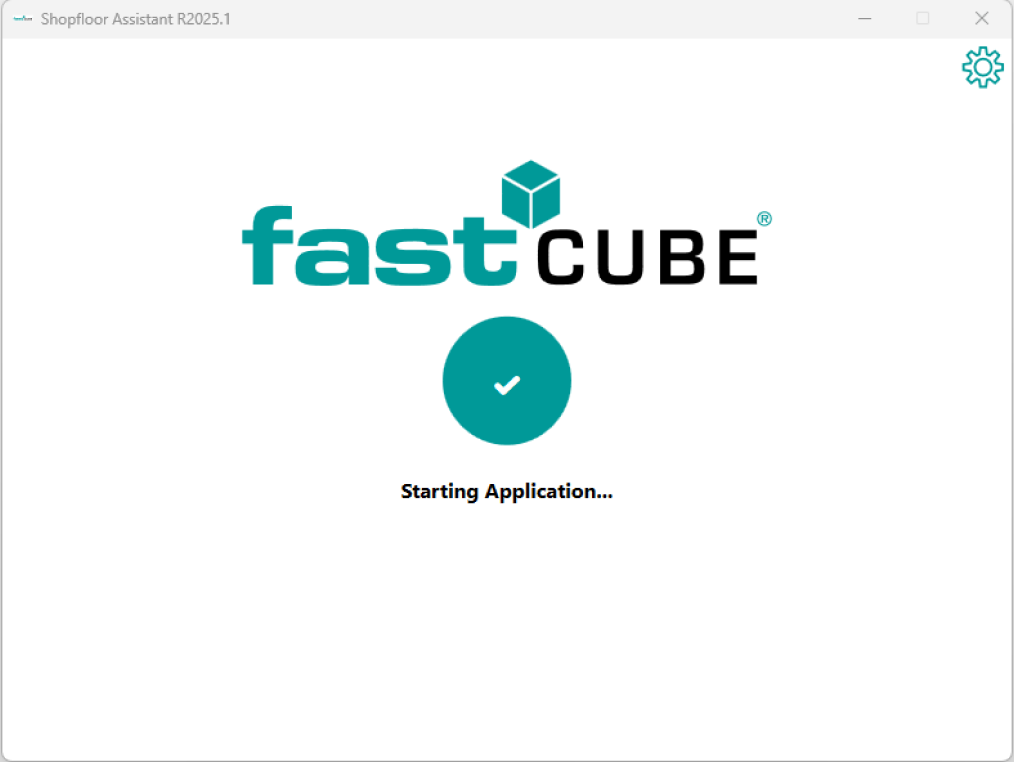
Step 2 — Components ready
When initialization finishes, the status bar displays “OK”, confirming that the environment is ready.
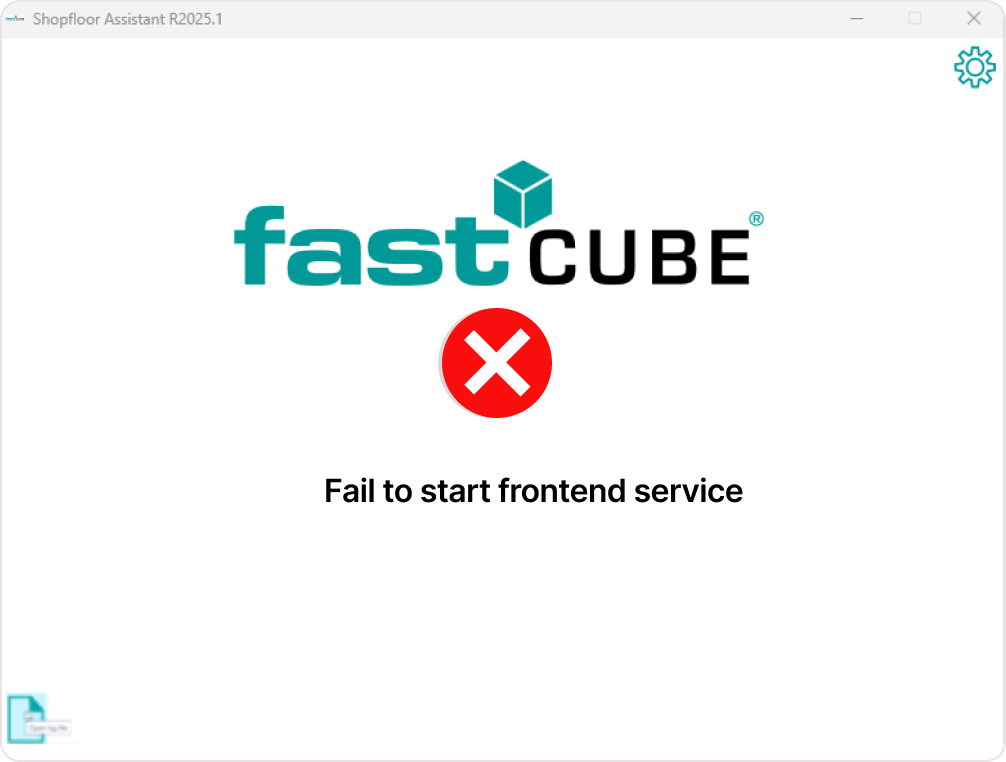
If any startup errors occur, it will appear directly in the launcher window.
You can open the detailed log using the Log File button located in the bottom-left corner.
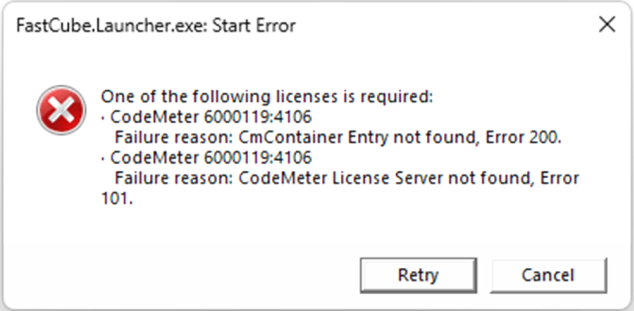
If Shopfloor Assistant fails to start due to a missing or unavailable license, an error dialog will be displayed indicating that the required CodeMeter license could not be found. This situation can occur for one of the following reasons:
- The required license container is not available on the local machine.
- The CodeMeter License Server cannot be reached or is not running.
- The license is not installed or has expired.
In this case, Shopfloor Assistant cannot continue to launch until a valid license is detected.
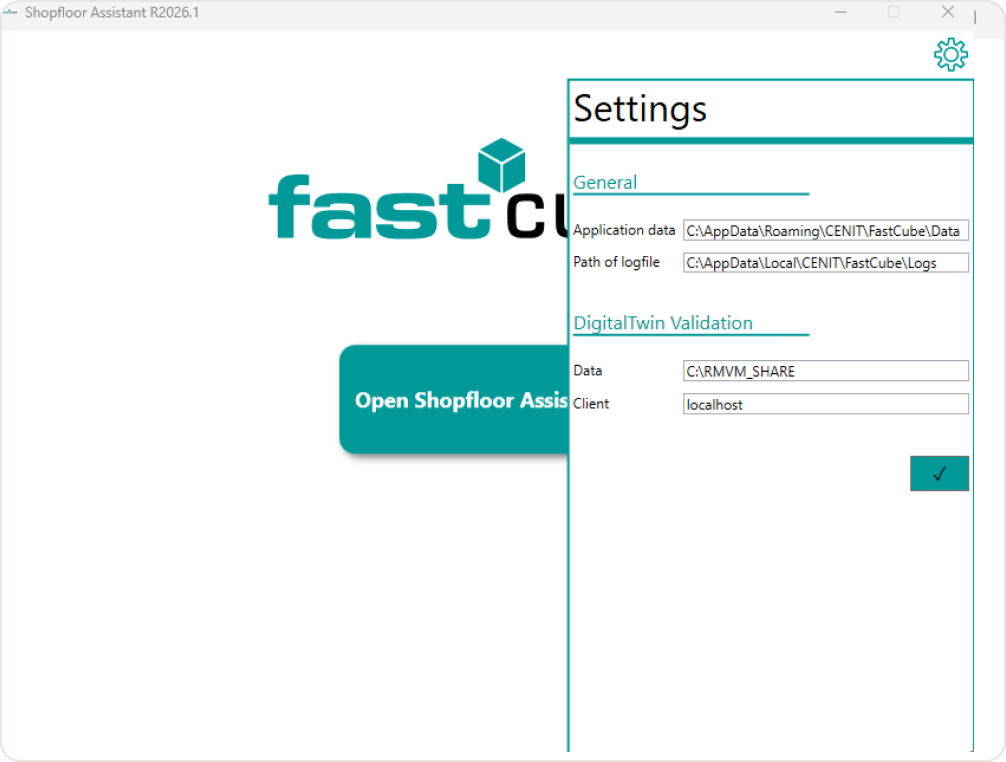
Step 3 — Adjust environment variables (optional)
Environment variables can be accessed from the top-right corner of the launcher window.
These variables control important runtime paths and configuration settings.
If you modify any values, restart the launcher for the changes to take effect.
Step 4 — Open the application interface
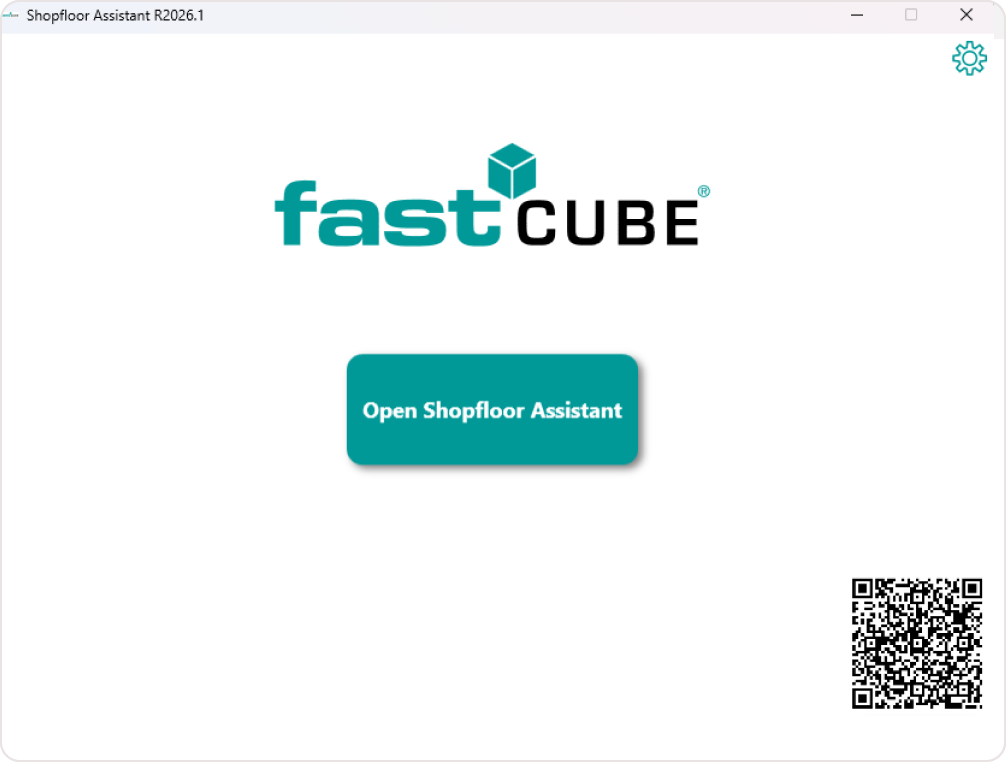
After all components are initialized, the launcher displays the button:
Open Shopfloor Assistant
Click the button to start the application interface.
A new browser tab automatically opens at:
Step 5 — Verify the user interface
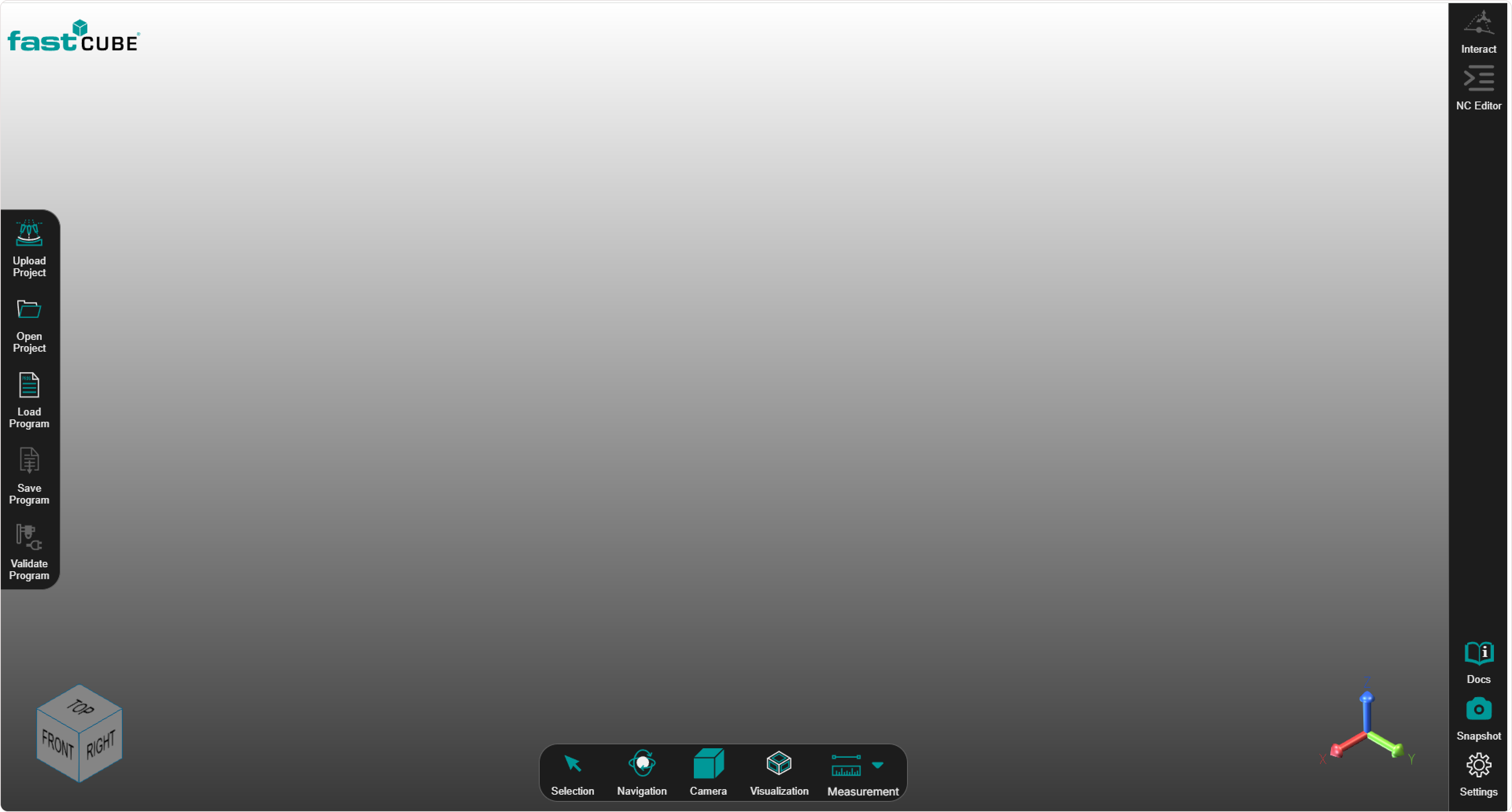
Once the browser opens, the Shopfloor Assistant interface appears.
| Checkpoint | Expected result |
|---|---|
| 3D viewer loads | The center area shows a neutral grey workspace and an orientation cube (FRONT / RIGHT / TOP) |
| No errors | No pop-up or console errors appear |
| Panels visible | The left, bottom, and right panels are visible and responsive |
💡 Operator tips
- Run the launcher as administrator to avoid permission issues.
- If the launcher does not start, check antivirus or firewall settings.
- If the browser does not open automatically, manually enter the address below in your browser: http://127.0.0.1:50000/ **.
- Ensure the environment variables are correctly configured in the launcher.
- Each interface panel is clearly labeled and interactive, allowing quick navigation of Shopfloor functions.