Previewing Toolpath Changes
When applying transformations from the Rototranslation Panel, Shopfloor Assistant displays a temporary preview of the resulting toolpath in the 3D Viewer.
This preview allows the operator to verify the geometric impact of the transformation before committing the modification to the NC program.
The original toolpath remains unchanged until the transformation is confirmed.
How the Preview Works
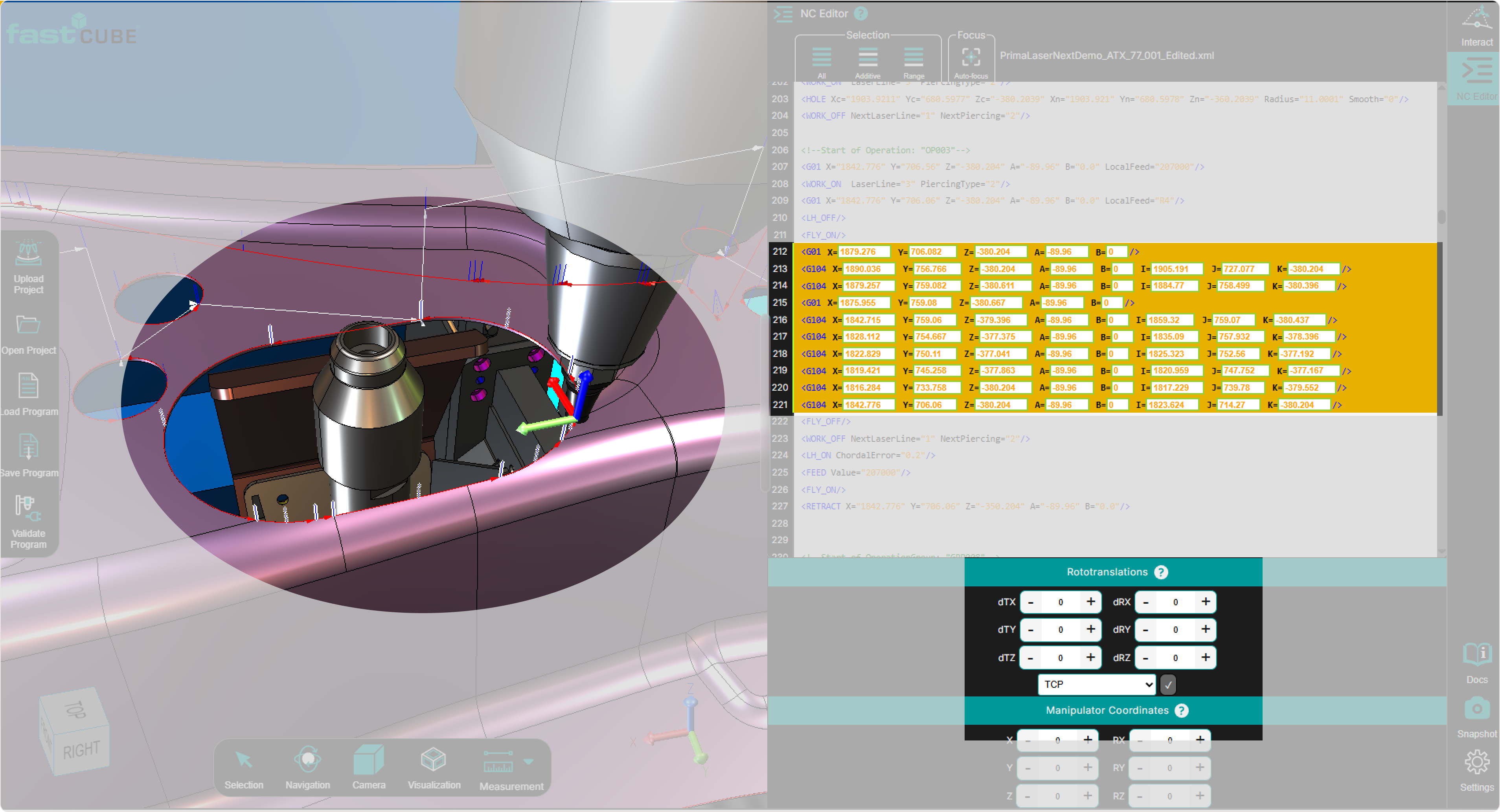
Step 1 — Select points to transform
Select one or more motion points or an entire Regshape block in the:
- NC Editor
- 3D Viewer
Step 2 — Enter transformation values
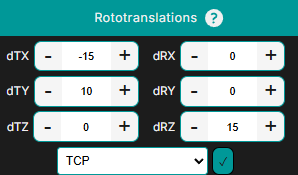
In the Rototranslation Panel, define the transformation values:
- Translation offsets (dTx, dTy, dTz)
- Rotation offsets (dRx, dRy, dRz)
Step 3 — Preview the resulting toolpath
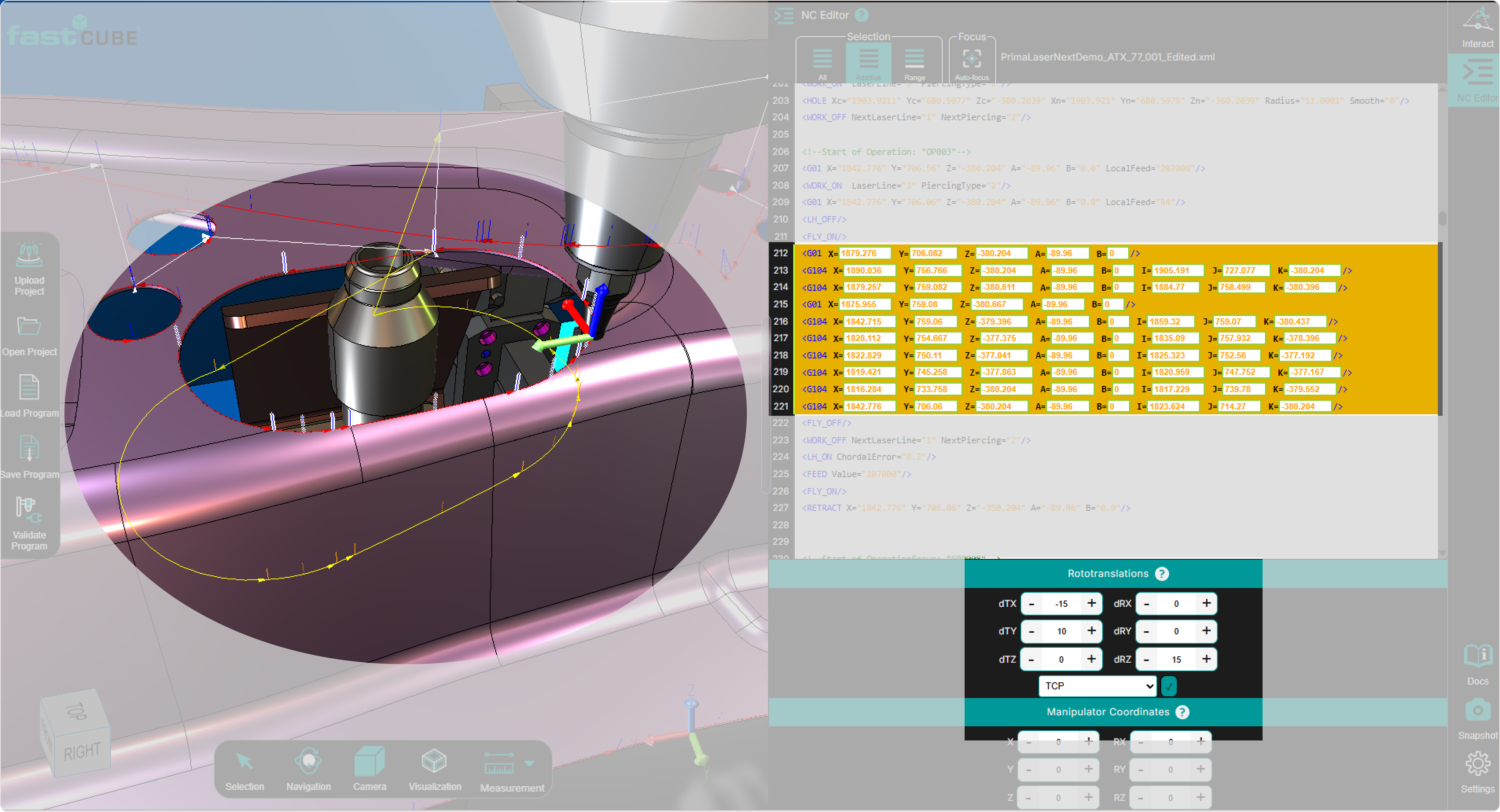
The system calculates the transformation and displays a preview of the new toolpath in the 3D Viewer.
The preview allows the operator to visually verify the result before applying any changes to the NC program.
During preview:
- the modified toolpath is displayed separately from the original position
- the operator can clearly see the difference between the initial and transformed geometry
- the Manipulator reflects the new pivot and position
- circular motions (G104) are recalculated, including arc endpoints and via/mid-points
- regshape structures remain consistent, preserving internal geometry and relationships
- all dependent positions and offsets are updated accordingly
- no changes are written to the NC program yet
This step is essential for validating:
- the new position of the toolpath
- the correctness of the transformation
- circular geometry behavior and continuity
- potential clearance or collision risks
The operator can review the result and decide whether to apply or discard the transformation.
Visual Representation
The preview clearly distinguishes between the current program and the temporary transformation result.
| Element | Description |
|---|---|
| Original toolpath | Displayed using the standard program color |
| Preview toolpath | Displayed in neutral grey to indicate a temporary transformation |
Applying or Discarding the Transformation
After reviewing the preview, the operator can either confirm the transformation or cancel it.
Apply the Transformation
Press Accept in the Rototranslation Panel to confirm the modification.
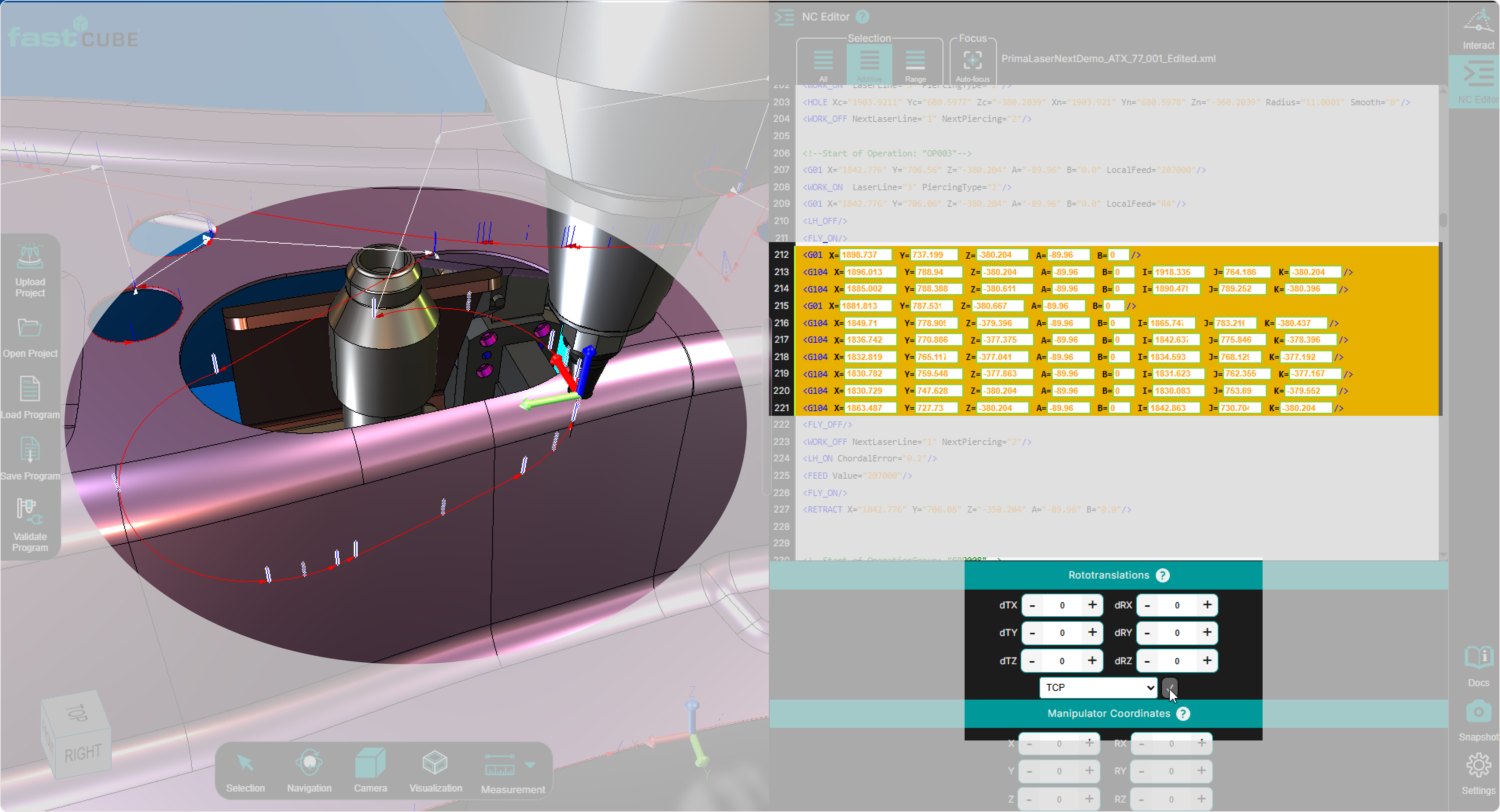
When the transformation is applied:
- the updated coordinates are written to the NC program
- the preview toolpath becomes the new active toolpath
- the 3D Viewer refreshes using the updated program data
Use Accept only after verifying the transformation in the 3D Viewer.
Discard the Transformation
If the preview does not match the intended result, the operator can cancel the operation.
The preview is automatically cleared when one of the following actions occurs:
- selecting a different NC line
- selecting a different point in the 3D Viewer
- clearing the values entered in the Rototranslation Panel
Discarding the preview:
- removes the temporary preview toolpath
- restores the original toolpath visualization
- leaves the NC program unchanged
This allows the operator to safely test different transformation values without modifying the program.
Notes for Operators
- Preview mode allows you to validate transformations before modifying the NC program.
- No changes are written to the program until Accept is pressed.
- Use the 3D Viewer to confirm the spatial result before applying the transformation.
- If the preview result is incorrect, simply discard the preview and adjust the transformation parameters.
- Multiple preview attempts can be performed safely before confirming the final result.
- When working with Regshape blocks, the internal geometry of the block remains preserved during preview and final application.