Search in the NC Editor
Purpose
The Search function helps operators quickly find specific content inside the NC Editor.
It can be used to locate:
- NC commands
- parameter names
- attribute names
- specific values
- repeated occurrences in the program
This is especially useful when working with large NC programs where manual navigation would take too long.
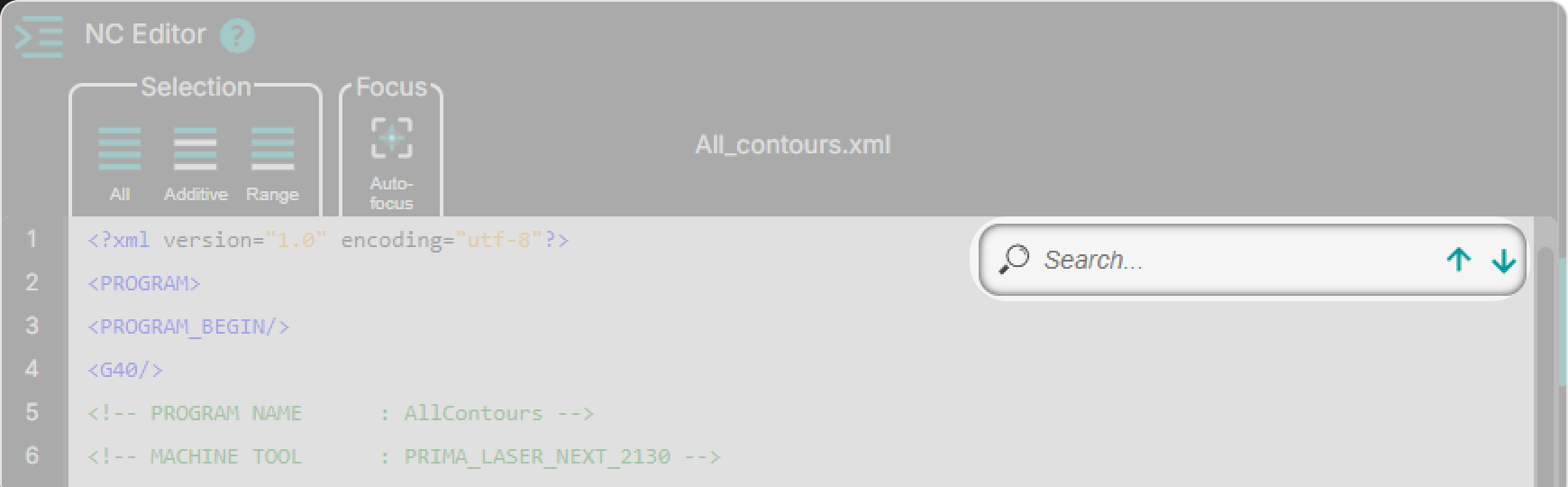
How Search Works
The search field is always visible in the top-right area of the NC Editor.
Search is performed in real time — results are updated instantly as you type.
Search is case-sensitive, meaning that uppercase and lowercase characters are treated differently.
When a search term is entered:
- matching text is highlighted in the NC Editor
- the first match is selected automatically
- the editor jumps directly to that occurrence
- the operator can navigate between matches using the up and down arrows
The search result counter shows the current occurrence and the total number of matches.
Step 1 — Use the Search Field
The Search field is always available in the NC Editor.
Simply start typing the text you want to find.
Typical examples include:
laserlineG01PiercingTypeWork_On- numeric values
Step 2 — Enter the Search Term
As you type in the search field:
- matching lines are highlighted instantly
- the first result becomes active automatically
- the editor jumps to the first matching occurrence
No confirmation (Enter key) is required.
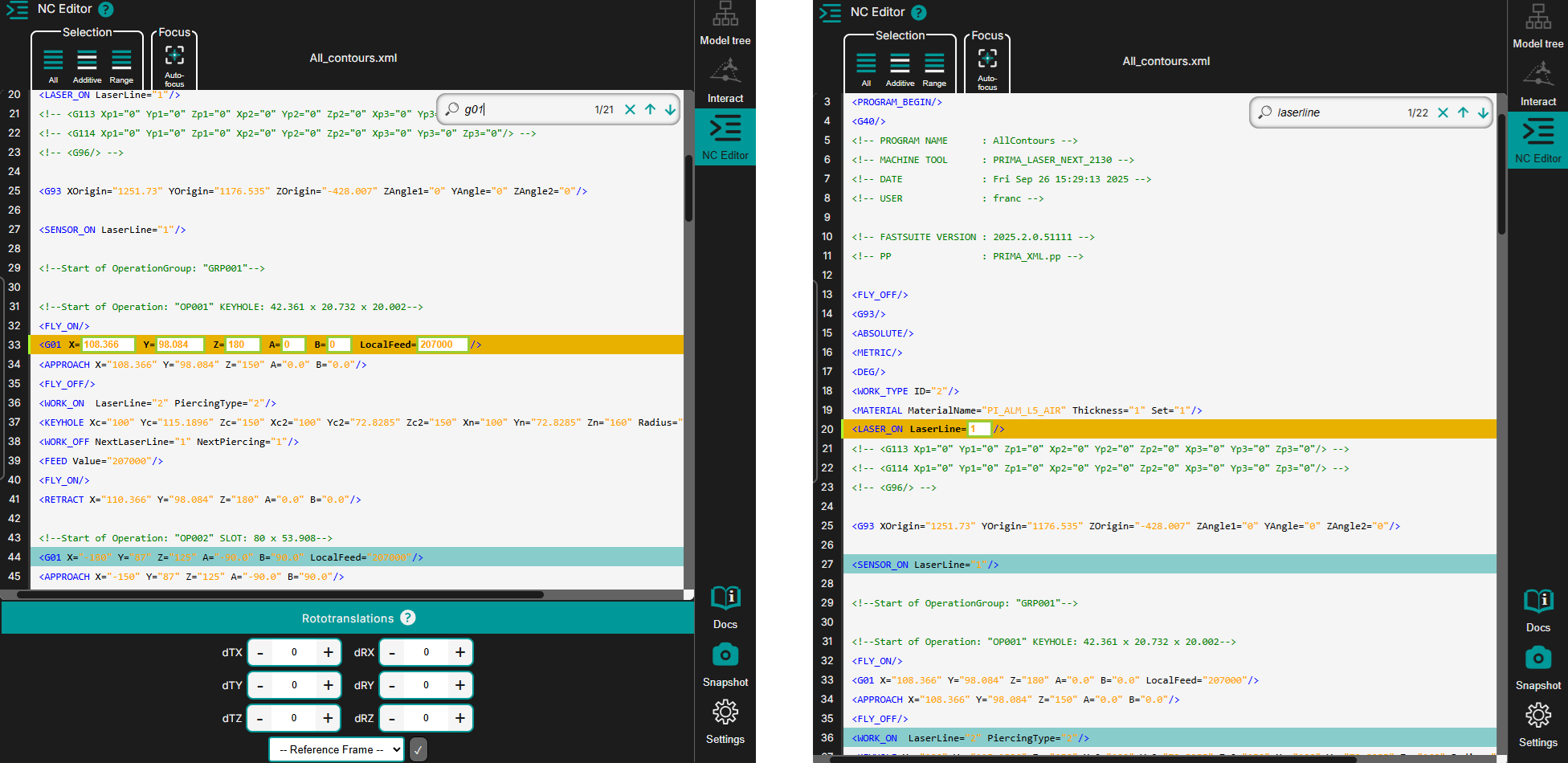
Step 3 — Navigate Through the Results
Use the navigation arrows in the search field to move through the matches:
- Down arrow — next occurrence
- Up arrow — previous occurrence
The result counter updates automatically, for example: 1/22
This means:
- 1 = current selected match
- 22 = total number of matches found in the NC program
Step 4 — Clear the Search
Press the X button in the search field to clear the search term.
When the search is cleared:
- all highlights are removed
- the editor returns to the normal view
- no search result remains active
Typical Use Cases
Search is useful when the operator needs to:
- find all occurrences of a specific NC command
- locate a technology parameter
- jump quickly to repeated values in the program
- verify where a certain attribute is used
- inspect repeated commands before editing
Notes for Operators
- The search field is always visible and ready to use.
- Results are updated live while typing.
- Search is case-sensitive — make sure to match uppercase and lowercase characters.
- Use the result counter to understand how many occurrences exist in the program.
- Use the navigation arrows to move step by step through all matches.
- Clearing the search removes all highlights and resets the search state.
- Search is especially useful before applying line-by-line edits or reviewing repeated NC attributes.