Installation – Step-by-Step Setup
Installing Shopfloor Assistant is designed to be fast, intuitive, and hassle-free. This section walks you through the complete setup process using the provided installer: FastCube Installer.exe.
The installer ensures that all required components and services are correctly configured on your local machine. No internet connection is required — everything runs locally.
How to run the installer
Locate the file named FastCube Installer.exe and double-click it to begin the installation.
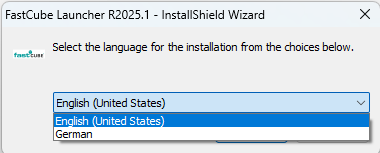
Step 1 – Select your preferred language
Choose the language you want the installer and application interface to use.
Step 2 – Automatic dependency setup
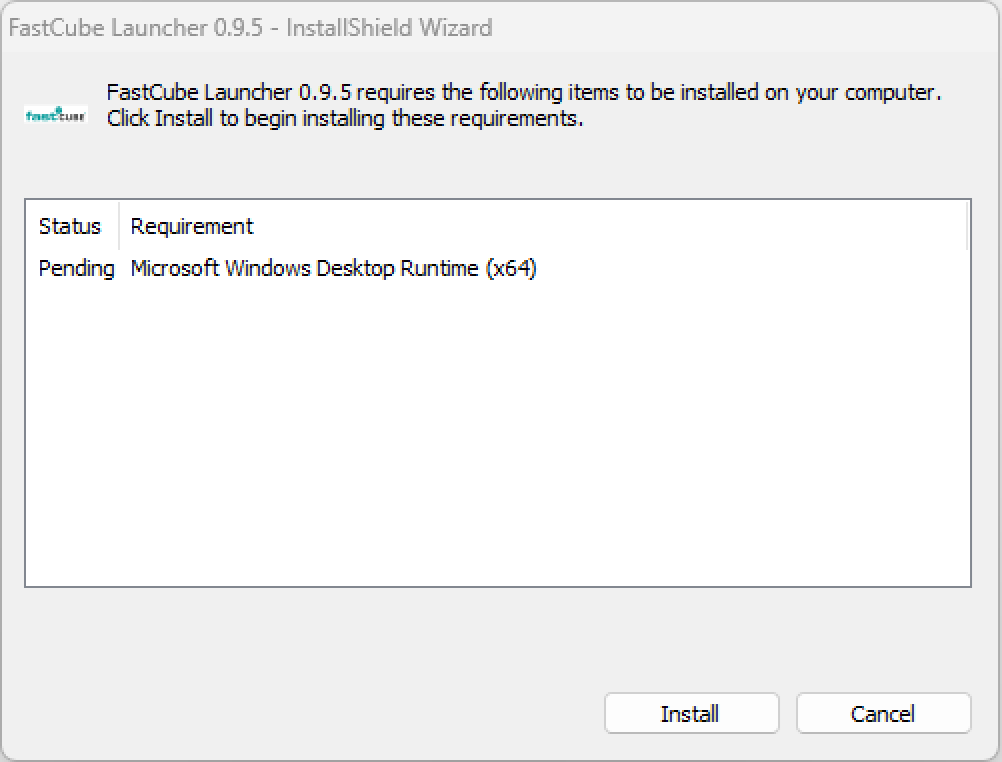
During this step, the installer automatically checks for all required components.
If these components are already present on your system, the installer will skip them — no action is required.
If any required components are missing, a notification window will appear informing you about the additional installations. You will be asked to confirm before these components are installed.
Step 3 – Select installation folder
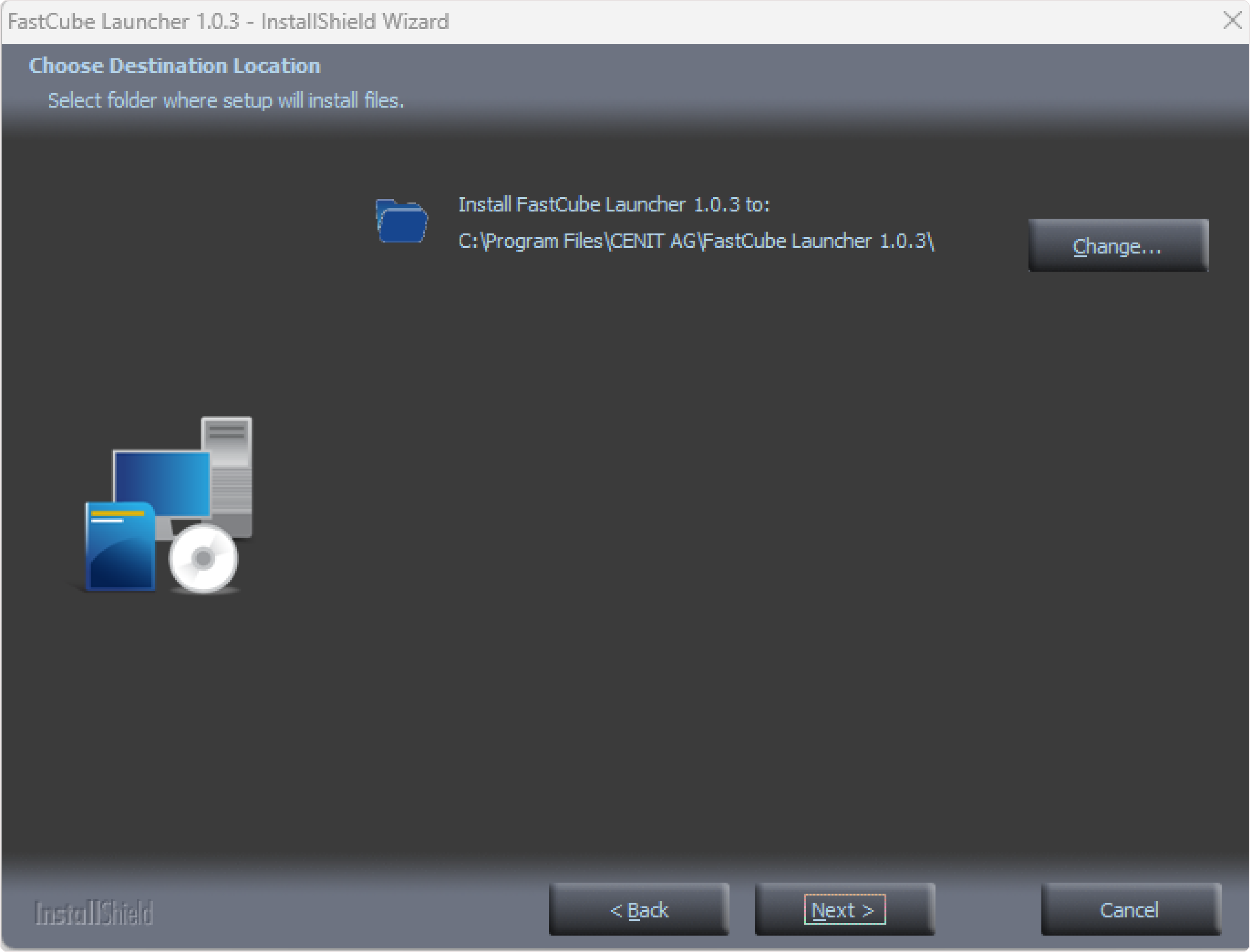
Choose the folder where Shopfloor Assistant will be installed.
Step 4 – Initial environment variables setup
The installer will display the environment variables that can be configured. These variables control key aspects of the application’s behavior at runtime and are essential for proper operation.
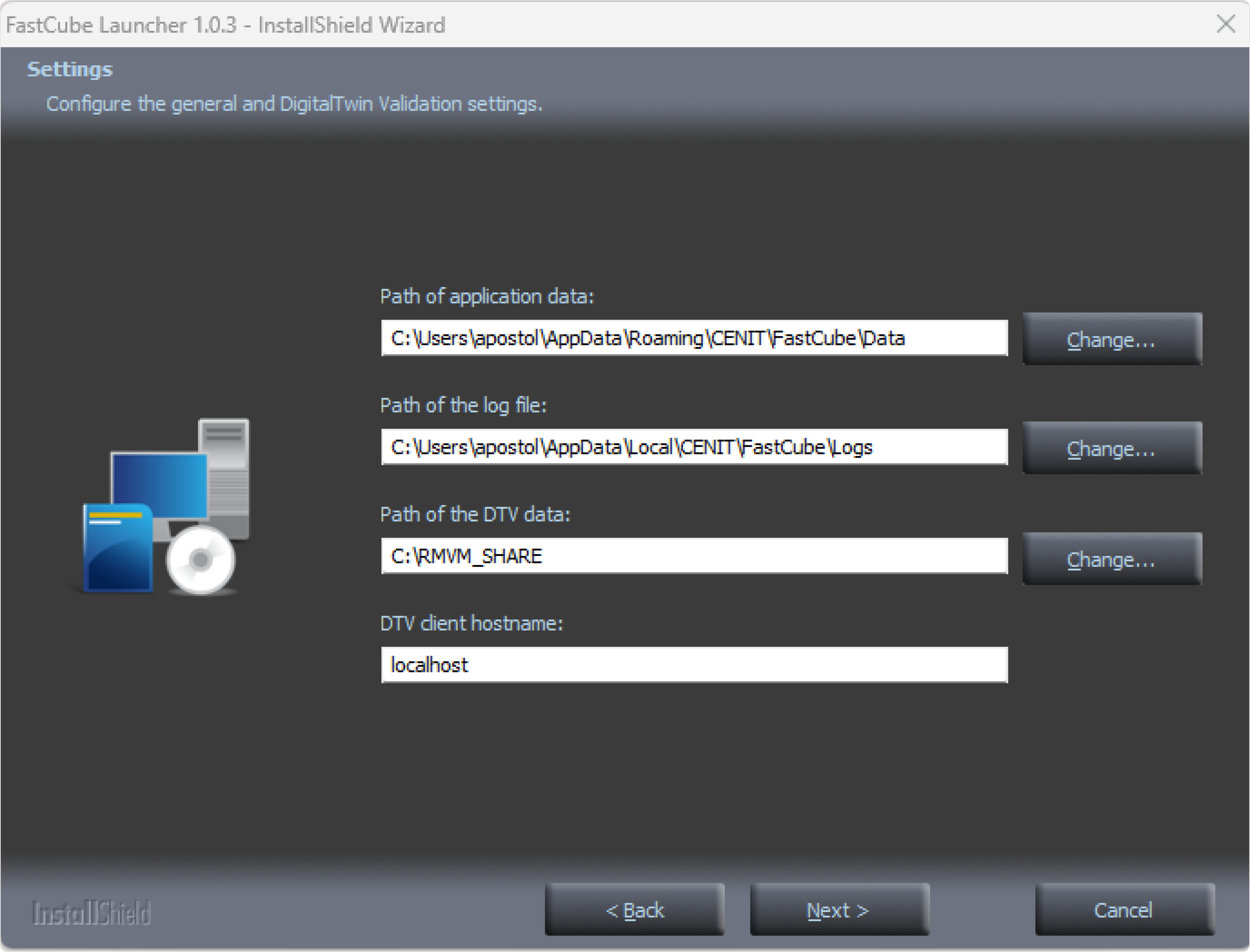
The available variables include:
- Path of application data – Specifies the directory where the application stores its data.
- Path of the log file – Defines the location where the application writes log files.
- Path of DTV data – Sets the directories where Digital Twin Validation (DTV) stores its data.
- DTV client hostname – Specifies the hostname of the DTV client.
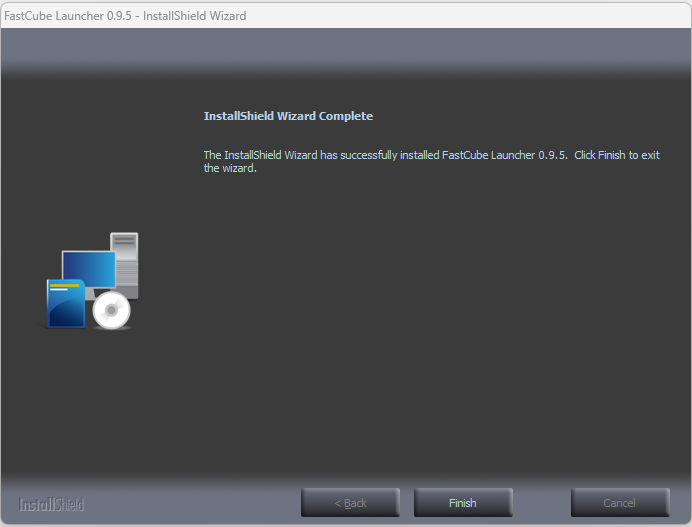
Step 5 – Complete installation
Once all previous steps are completed, the installer will finalize the setup.
A desktop shortcut named FastCube.R2026.1 will be created for easy access.
Shopfloor Assistant is now fully installed and ready to use.
💡 Practical tips
- Ensure that the license server is correctly configured in CodeMeter WebAdmin and that the required license is available.
- Run the installer as administrator to avoid permission issues.
- Use a short folder path to avoid installation errors (for example:
C:\ShopfloorAssistant). - Once configured, the environment variable values will be used every time the application starts.
If you need to change them later, you can do so via the Settings button in the FastCube Launcher interface.