Auto-Focus Function
Purpose
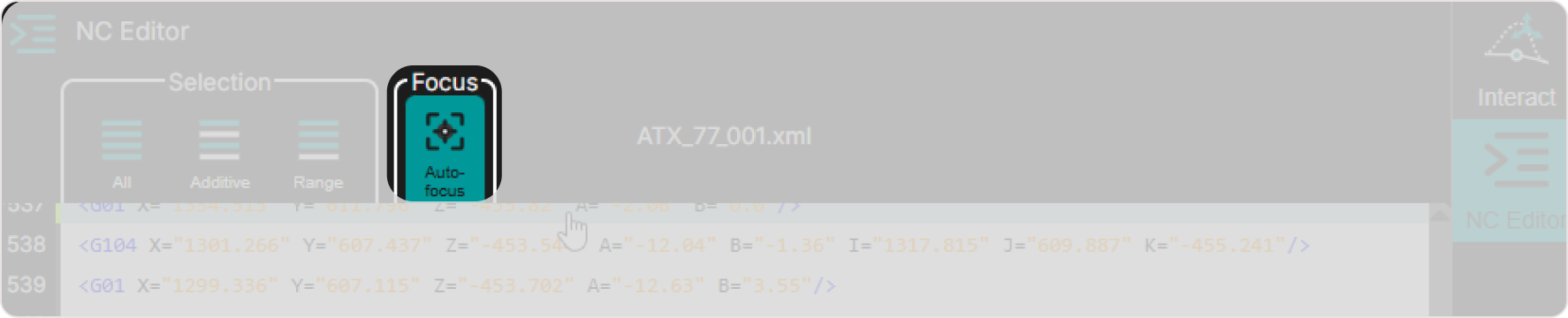
The Auto-Focus feature automatically centers the 3D Viewer on the currently selected NC point.
This helps operators quickly locate the active editing position, especially when working with large or complex toolpaths.
System Behavior
When Auto-Focus is enabled, the 3D Viewer automatically adjusts the camera whenever a new NC line is selected.
The camera automatically:
- centers the view on the selected point
- zooms to the relevant toolpath area
- adjusts the viewing angle for clear visibility
This allows operators to immediately inspect the editing location without manually navigating the camera.
How Auto-Focus Works
Step 1 — Select a Line in the NC Editor
Click a motion line in the NC Editor.
The corresponding toolpath point becomes active.
Step 2 — Automatic Camera Adjustment
If Auto-Focus is enabled in the NC Editor toolbar, the 3D Viewer automatically focuses on the selected point.
The camera centers and zooms on the location, providing a clear view of the editing area.
Notes for Operators
- Auto-Focus improves navigation when working with long or complex NC programs.
- The feature can be toggled ON or OFF depending on whether automatic or manual camera control is preferred.
- When multiple lines are selected, Auto-Focus centers the view on the first selected point.
- Use Auto-Focus together with Single-Point Selection to quickly inspect individual toolpath positions.
Was this page helpful?