Regshape Editing Workflow
Regshapes represent structured machining features, such as:
- holes
- slots
- rectangles
- hexagons
- keyholes
These shapes can be edited using the Regshape Attributes Panel.
For detailed information about the parameters, see:
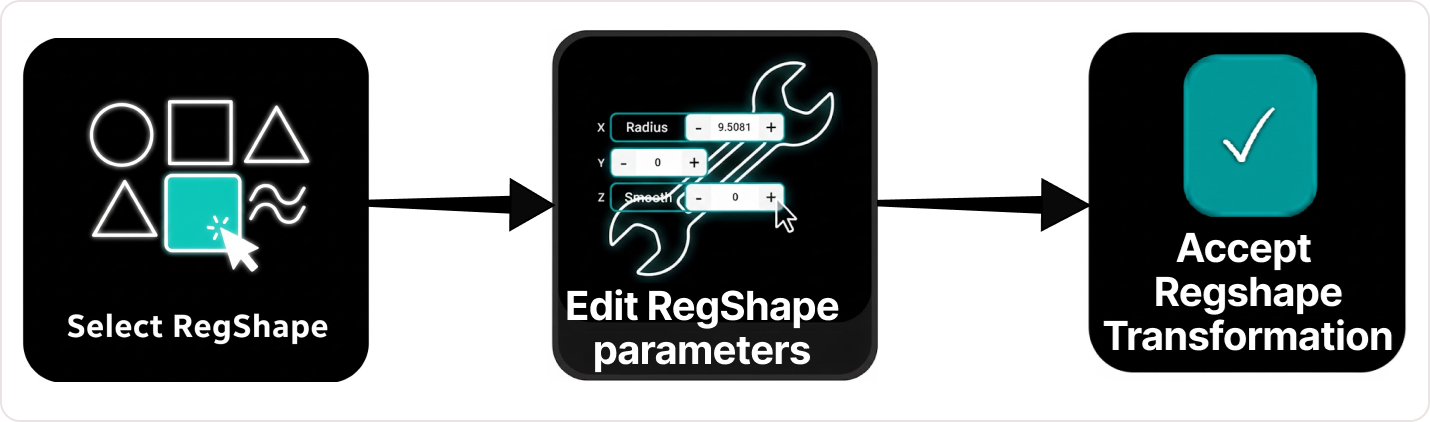
Step 1 — Select the Regshape
Select any line belonging to the regshape in the NC Editor or 3D Viewer.
The entire regshape structure becomes highlighted.
Step 2 — Open the Attribute Panel
The Regshape Attributes Panel appears automatically.
It displays parameters relevant to the selected shape.
Step 3 — Modify the Attributes
Adjust parameters such as:
- radius
- width
- length
- corner radius
- smoothness
Press Accept to apply the change.
Step 4 — Verify the Result
Inspect the updated geometry in the 3D Viewer.
Confirm that:
- the shape matches the intended dimensions
- approach and retract movements remain valid
Notes for Operators
-
Selecting any line of a regshape automatically activates the entire feature block.
-
Regshape editing updates all internal geometry points simultaneously, ensuring the feature remains consistent.
-
The Manipulator is positioned at the center of the regshape, allowing intuitive spatial adjustments.
-
Use the Regshape Attributes Panel for structured edits instead of modifying individual points.
-
Editing attributes such as radius, width, or corner radius preserves the internal machining logic of the feature.
-
After modifying a regshape, always verify the updated geometry in the 3D Viewer to confirm the intended dimensions and toolpath transitions.