Multi-Line Selection
Purpose
Multi-line selection allows operators to select and edit multiple NC lines simultaneously.
This capability is used when adjusting toolpath segments, applying transformations, or modifying multiple motion points at once.
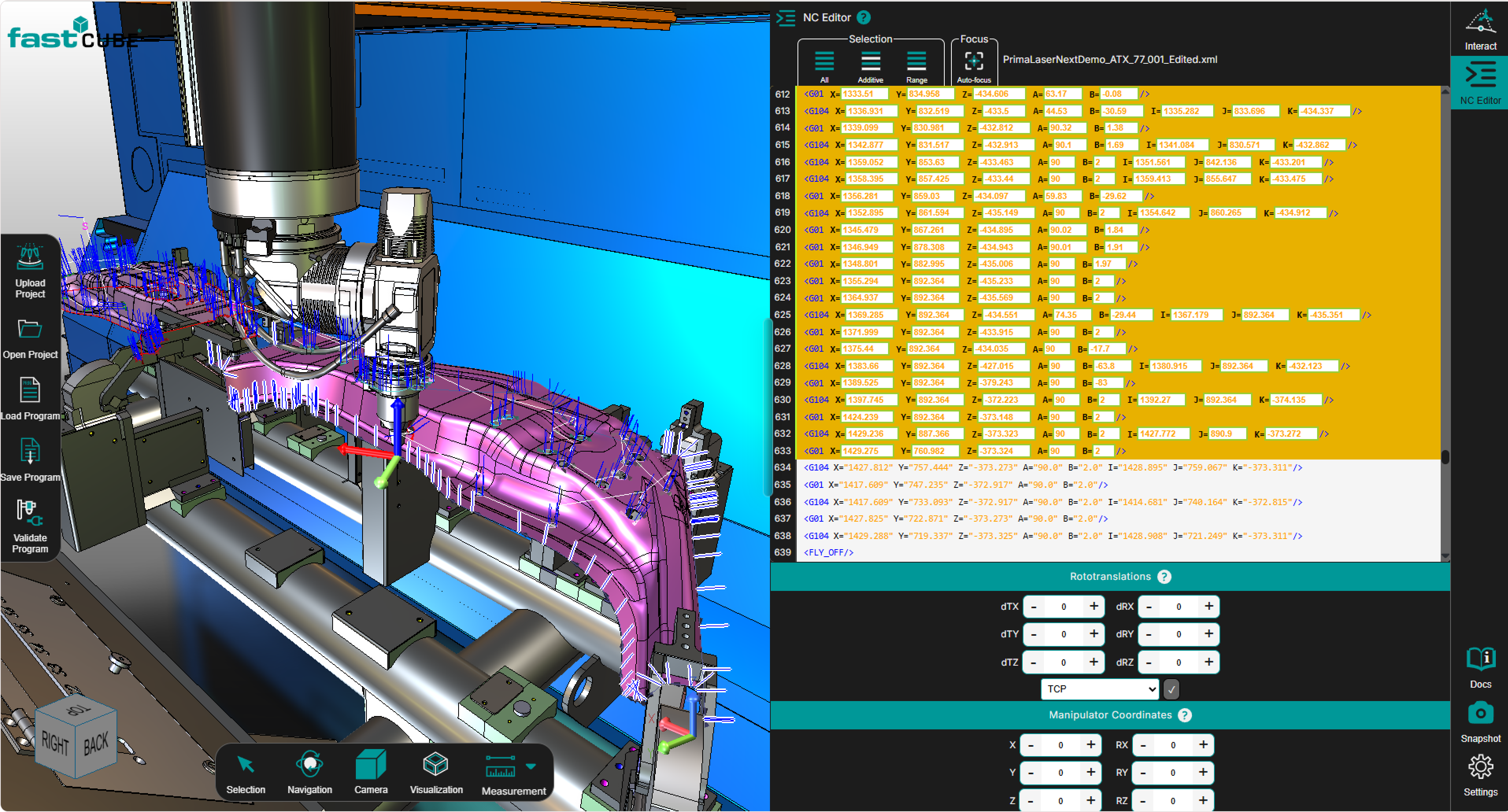
Shopfloor Assistant supports both range-based selection and additive selection, fully synchronized with the 3D Viewer.
Selection Behavior
When multiple lines are selected:
- the Manipulator appears on the first selected motion point
- all other selected points are highlighted in the 3D Viewer
Selection remains bi-directional:
- selecting lines in the NC Editor highlights the corresponding toolpath points in the 3D Viewer
- selecting points in the 3D Viewer highlights the corresponding NC lines in the editor
Step 1 — Keyboard Selection Methods
Shopfloor Assistant supports three keyboard-based multi-selection methods.
SHIFT — Range Selection
Used for selecting a continuous range of lines, similar to selection in Windows Explorer.
Behavior
- selects all lines between the range anchor and the clicked line
- automatically deselects lines outside the range
- selecting a regshape or approach point expands the selection to the full pattern block
Typical use
Editing a complete machining segment or arc block.
CTRL — Additive Selection
Used to add or remove individual lines from the current selection.
Behavior
- adds or removes a line without clearing the existing selection
- selecting a regshape line adds the entire regshape block
- selecting a non-motion line preserves the previous selection while updating the range anchor
Typical use
Assembling a custom group of points.
CTRL + SHIFT — Additive Range Selection
Used for selecting multiple independent ranges.
Behavior
- adds a continuous range to the existing selection
- does not clear previously selected ranges
- respects pattern-recognition logic (approach + geometry + retract)
Typical use
Editing multiple non-adjacent toolpath regions.
Step 2 — Using the NC Editor Panel Buttons
The NC Editor panel includes buttons that mirror the keyboard shortcuts.
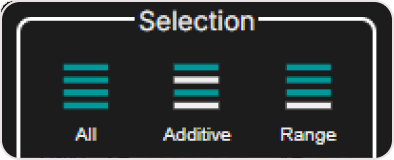
Available buttons:
- Additive Selection — equivalent to CTRL
- Range Selection — equivalent to SHIFT
- Additive + Range Selection — equivalent to CTRL + SHIFT
- Select All — selects:
- all NC lines
- all motion lines
- all regshape blocks
This option is useful when applying transformations to the entire NC program.
Clearing the Selection
The selection can be cleared by:
- clicking outside the toolpath in the NC Editor
- clicking an empty area in the 3D Viewer
- performing a single selection without CTRL or SHIFT
Step 3 — Visual Confirmation in the 3D Viewer
After multi-selection, the 3D Viewer provides visual confirmation of the selected elements.
Manipulator Placement
The Manipulator appears on the first selected motion line
(or the regshape start point when selecting a regshape block).
This point becomes the pivot for all transformations.
Highlighted Points
All selected points are highlighted in the 3D Viewer, providing an immediate visual overview of:
- the affected toolpath region
- the pivot location
- the spatial relationship between selected points
Selection remains bi-directional:
- selecting in the NC Editor updates the 3D Viewer
- selecting in the 3D Viewer updates the NC Editor
Notes for Operators
- Selection behavior adapts automatically depending on CTRL, SHIFT, or CTRL + SHIFT.
- Pattern recognition prevents partial selections — selecting a regshape automatically expands to the full logical block.
- The Manipulator appears on the first selected motion point, which becomes the pivot for transformations.
- Use the 3D Viewer to verify selected points before applying transformations.
- CTRL + SHIFT is especially useful for editing multiple independent toolpath regions.
- If TCP reference is active, the manipulator is visible and editable.
- If Base Frame reference is active, the manipulator is hidden but transformations still apply correctly.